Product features

Not more clips.
Better decisions.

HiClip breaks “clipping” into six checkable stages: semantic windows, scoring, context, review, language, and delivery. Each stage makes the decision easier to inspect instead of asking you to trust a black box.

Semantic cuttingSix-dimension scoringContext warningsHuman review12 languagesBatch export

Transparent scoring

Six dimensions. Published weights.

The score is not a “virality probability.” It is a breakdown of the clip’s own value. Risks appear separately, no penalty is applied twice, and views are never predicted.

Each dimension is scored independently, so one flaw does not spread across every number.

Highlight value25%

Does the clip contain a worthwhile insight, practical method, story, quote, or standout moment?

Standalone completeness25%

Can it be understood without earlier footage? Are references clear, and does it keep the context and conclusion it needs?

Content appeal20%

Is the clip interesting, useful, surprising, or thought-provoking enough to hold attention on its own?

Emotional resonance15%

Does it connect to viewers’ experience and pain points through curiosity, recognition, surprise, emotion, or humor?

Pacing & concision10%

Does it move without filler, repetition, or empty setup, and is its length justified by what it says?

Cut quality5%

Do the in and out points land on natural boundaries without an unexplained opening or truncated conclusion?

The weights total 100%. Highlight value and standalone completeness each carry 25%, because they decide whether a candidate can stand on its own.

How it is built

Put the evidence into every stage.

From where the first cut lands to how the last file is delivered, HiClip tries to keep the process explainable and the result editable.

01 / Cuts

Understand where a sentence ends before choosing where a clip starts

HiClip first turns speech into a word-level, time-aligned transcript, then builds candidate windows from complete sentences and semantic units. A clip never starts mid-sentence or cuts off the conclusion at the last second.

  • Build candidates on complete sentences and pauses
  • Filter clips below the standalone-completeness bar
  • Control clip duration instead of letting setup drag on
  • Diversify overlapping candidates

02 / Scoring

Explain why a clip was selected, not just hand you a number

Every candidate receives six independent scores based on the transcript. HiClip does not predict views, and louder audio or a shakier frame does not raise a recommendation.

  • Six dimensions with published weights
  • A specific ranking reason for every clip
  • Risks shown separately without double penalties
  • Historical clips keep the rubric they were scored with

03 / Context

Context risks should surface before publishing

A clip can sound complete while referring to a name, price, or conclusion that never appeared earlier. HiClip marks those risks so you can add background, extend the clip, or drop it during review.

  • Point out missing prerequisite context
  • Flag dangling references and unanswered questions
  • Show transcript before and after the clip
  • Keep risks separate from the score

04 / Review

AI organizes; you decide

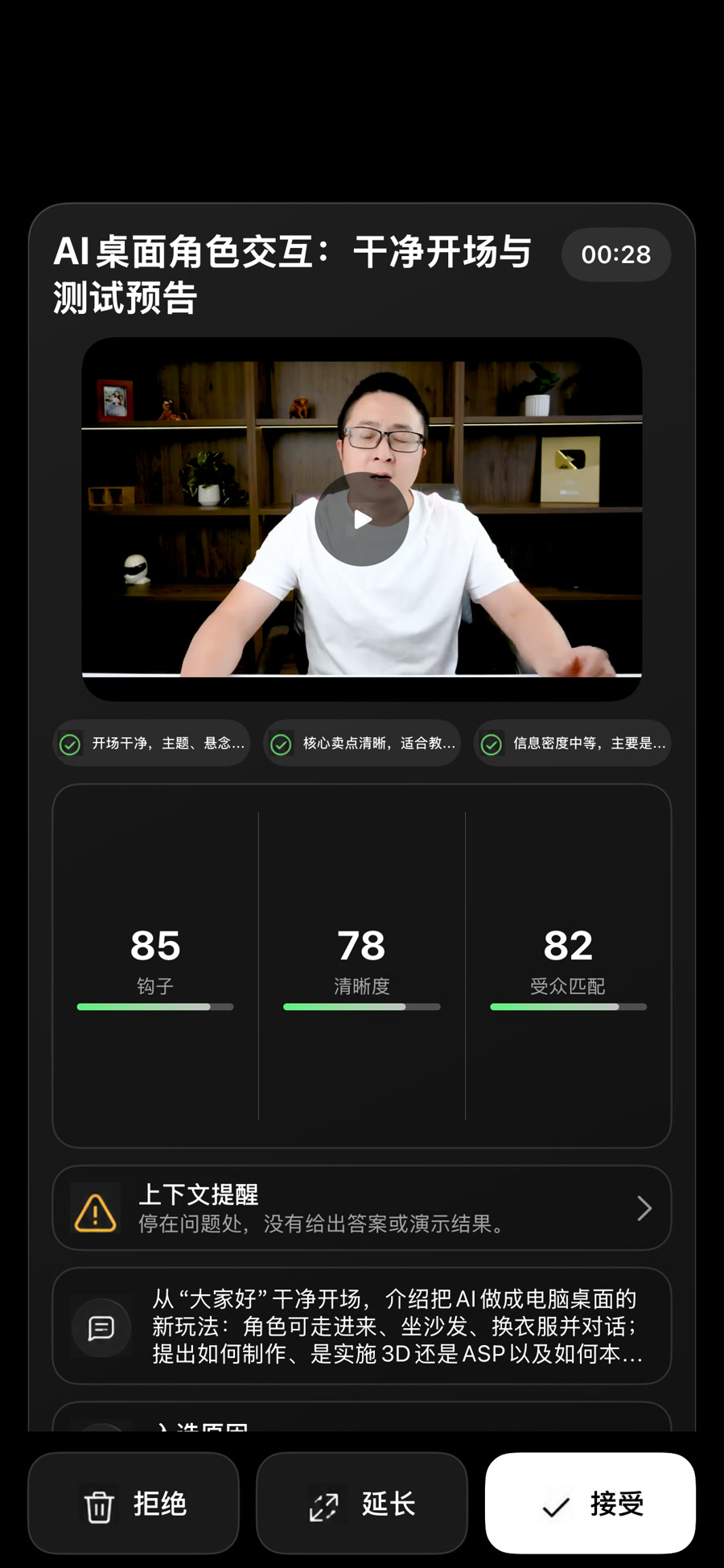
The review card puts the clip, scores, reasons, context warnings, and transcript on one screen. Accept, reject, or extend a candidate, or open the adjust screen to drag the cut points. Every decision happens before export.

  • Accept, reject, or extend one clip at a time
  • Drag in and out points with sentence snapping
  • Read transcript inside and outside the clip
  • Only accepted clips enter export

05 / Language

Multilingual output that keeps the original timeline

After transcription, output captions and copy in 12 languages. Translation is split at sentence boundaries and reuses the original timing; it never invents model-generated timestamps, and long lines are regrouped for readability.

  • Simplified and Traditional Chinese, English, Japanese, Korean
  • Spanish, French, German, Portuguese
  • Russian, Arabic, Hindi
  • Keep the source language or choose a target

06 / Delivery

Clips, captions, and publishing in one delivery step

Choose aspect ratio, quality, caption style, and framing at export. Generate clips in a batch, save them to Photos or Files, or publish to connected YouTube and Instagram accounts.

  • 9:16, 1:1, 16:9, 4:5, and original aspect ratio
  • 1080p or 720p
  • Clean, bold, or no captions
  • Automatic subject tracking and safe vertical framing

At a glance

Capabilities

These are the capabilities of the current iOS app. Availability can vary by account, region, or operator configuration.

Import sources

Photos, Files, YouTube links, Bilibili links

Single video

MOV / MP4 / M4V, up to 2 hours

Candidates

Usually 8–15, filtered for completeness and diversity

Scoring

Highlight value, standalone completeness, appeal, resonance, pacing, cut quality

Output languages

Simplified and Traditional Chinese, English, Japanese, Korean, Spanish, French, German, Portuguese, Russian, Arabic, Hindi

Aspect ratios

9:16, 1:1, 16:9, 4:5, original

Export quality

1080p / 720p

Publishing

YouTube and Instagram (account connection required)

Storage

Private object storage with signed links

See it on your footage

Bring one long video you actually want to cut.

Look at the candidates, scores, and context warnings first, then decide which of the clips are worth publishing.